A TV is 1920 x 1080 or 3840 x 2160 the day you unbox it. An LED wall is not. Its resolution is whatever the cabinet grid adds up to – and that number is almost never a standard video format.
That is why the same question keeps coming up from church media teams, event video engineers and AV integrators: my wall isn’t 16:9 – do I export a custom resolution, just send 1080p, or let the processor scale it? And why is my picture cropped? Content guides published this year all give the same first rule: build content to the wall’s native canvas, place it 1:1, and treat scaling as a fallback.
This guide shows how to work out that canvas from the cabinets you are buying, how it fits into the video signal, how many pixels a data cable can carry, and what a usable pixel map should tell your content team – before show day, not on it.
Step 1: Work out the native canvas from the cabinets
Native resolution is simple multiplication:
cabinets across x pixels per cabinet (width) by cabinets high x pixels per cabinet (height)
For a quick estimate, wall width in mm ÷ pitch in mm is fine. For the exact canvas, don’t divide by the rounded pitch name: “P2.9” is really 2.976 mm and “P3.91” is 3.906 mm, so 500 mm ÷ 2.9 gives 172 pixels when the cabinet actually has 168. Use the pixels-per-cabinet figure from the spec sheet instead.
| Pitch name | Real pitch | 500 x 500 mm cabinet | 500 x 1000 mm cabinet |
|---|---|---|---|
| P2.6 | 2.604 mm | 192 x 192 px | 192 x 384 px |
| P2.9 | 2.976 mm | 168 x 168 px | 168 x 336 px |
| P3.91 | 3.906 mm | 128 x 128 px | 128 x 256 px |
| P4.81 | 4.807 mm | 104 x 104 px | 104 x 208 px |
Typical values for rental cabinets built from 250 x 250 mm modules. Always confirm against the spec sheet of the exact cabinet you order.
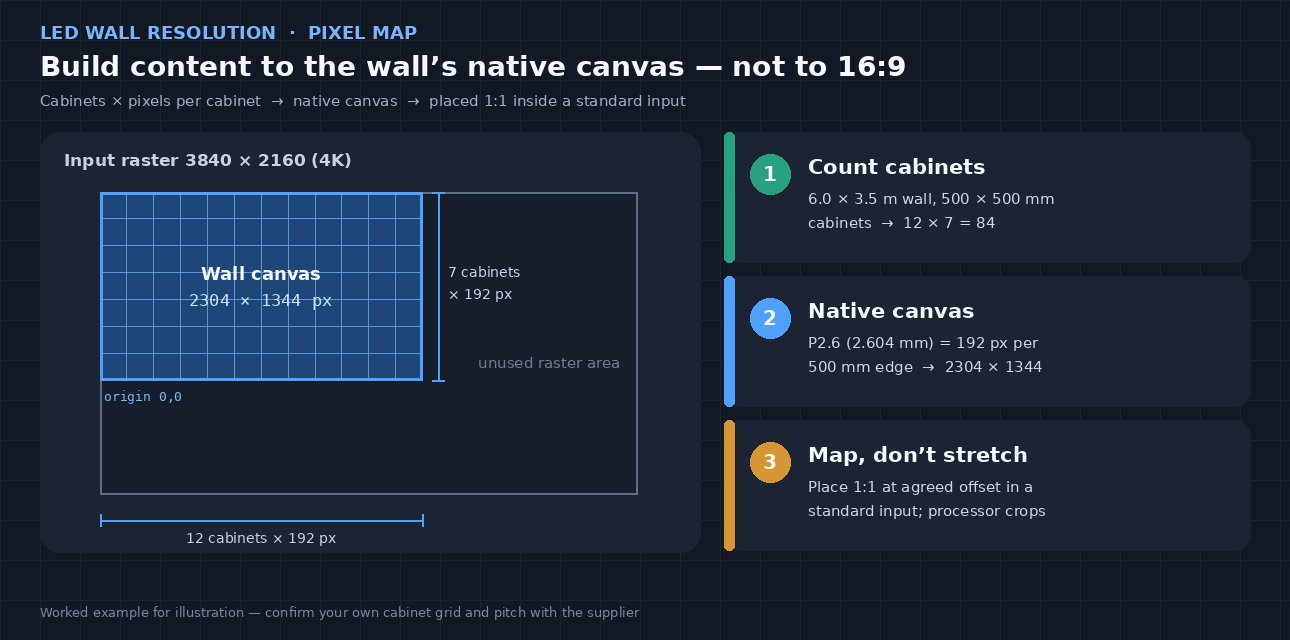
Worked example (illustration): a 6.0 m x 3.5 m wall at P2.6 using 500 x 500 mm cabinets is 12 x 7 = 84 cabinets. That gives 12 x 192 = 2304 pixels across and 7 x 192 = 1344 pixels high – about 3.1 million pixels, with an aspect ratio of roughly 1.71:1, not 16:9 (1.78:1).
If you are still choosing the wall size itself, our 4K LED wall weight guide shows how cabinet count drives both pixel count and hanging load, and the pixel pitch and viewing distance guide covers which pitch the room needs.

Step 2: Fit the canvas into a standard video signal
Most media players, presentation computers and switchers output standard formats: 1920 x 1080 or 3840 x 2160. The LED processor receives that signal and takes the region that belongs to the wall – by default usually the top-left corner – then sends it to the cabinets. Everything outside that region is simply not shown.
That explains most “why is it cropped?” problems:
- The canvas is bigger than the input. Our 2304 x 1344 example is wider and taller than 1080p, so a 1080p signal cannot carry it 1:1. You need a 4K input (the canvas sits in the top-left of 3840 x 2160), a custom output resolution, or scaling.
- The canvas is smaller than the input. A 1024 x 640 wall fed full-frame 1080p shows only the top-left 1024 x 640 of the picture – the rest is cut off unless something scales it down.
- The aspect ratio differs. A 16:9 clip on a 1.71:1 wall must be stretched, cropped, or letterboxed. On our example wall, fitting 1920 x 1080 to the width means a 1.2x upscale and 48 pixels of black bars. Building the content at 2304 x 1344 avoids both.
Some playback and presentation software can output a custom resolution that matches the wall exactly. That works when the computer’s graphics output and the LED processor both accept it – test it before the event rather than assuming it.
Step 3: Decide who scales – and when not to
There are three places the picture can be resized. In order of preference:
- Nobody – content is made at native size. The media server places it 1:1 at the agreed position in the output raster; the processor only crops. Sharpest result, no guesswork.
- An upstream switcher or scaler. Useful when several walls are fed from one system and each needs its own window, or for live sources that cannot be re-authored.
- The LED processor. Convenient – the wall can be treated like a “standard” 4K screen – but scaling softens fine detail, can add processing delay, and not every processor scales at all. Some only crop, which is why operators sometimes discover on site that they need an external scaler.
For live camera feeds (IMAG), the clean answer is usually to window the 16:9 image inside the canvas – at 1:1 if it fits – with graphics or background around it, rather than stretching it edge to edge. If delay matters, keep scaling steps in the chain to a minimum – each one can add processing time.
Step 4: Check the data load per port
The canvas also has to be carried from the processor to the cabinets over network cables. A typical Gigabit output port on common LED controllers carries roughly 650,000 pixels at 60 Hz and 8-bit. Higher bit depth or higher frame rates reduce that – at 10-bit it is roughly half. The exact figure depends on your controller, so check its datasheet.
For our 2304 x 1344 example:
- Each 192 x 192 cabinet is 36,864 pixels, so one port can take at most 17 cabinets.
- Installers usually load each port with whole columns or rows to keep the data path simple. Two columns of 7 cabinets = 14 cabinets ~ 516,000 pixels per port.
- 12 columns ÷ 2 = 6 ports for the main data path – and the same again if you run a backup loop. Running 10-bit would push it toward one column per port.
This matters at quote time: the number of ports decides which sending device or processor you need. Which control system the cabinets use is a separate decision made at quote time; how to back up the data path is covered in power and signal redundancy.
What a usable pixel map should show
A pixel map (also called a raster or LED map) is the one drawing that the content designer, the media server operator and the LED technician all work from. It should state:
| Item | Why it matters |
|---|---|
| Native width x height of every screen | Content is built to this size – not to 16:9 |
| x,y offset of each screen inside the output raster | Tells playback exactly where to place each canvas |
| Output resolution, frame rate and bit depth | e.g. 3840 x 2160 at 59.94 Hz; mismatched frame rates also cause camera issues |
| Cabinet grid with cabinet IDs | Speeds up fault finding and module swaps |
| Port / data-run order (and backup path) | Shows load per port and how the wall is wired |
| Hidden or masked areas | Cabinets behind set pieces, truss or monitors – keep text out |
| Safe zones | Where lyrics, logos, lower thirds or IMAG windows must sit |
| Mixed-pitch notes | Side screens at a coarser pitch need content scaled to look physically consistent |
| A test pattern at native size | Proves the mapping before anyone loads real content |

Content rules that follow from the canvas
- Compose for the real shape. Wide stage backdrops, strips and portrait side screens need their own layouts. A 16:9 template cropped later almost always loses the important part.
- Respect the physical pixel. One pixel on a P2.6 wall is about 2.6 mm across; on P3.91 it is about 3.9 mm. Thin 1-pixel lines and light, small type break up – use heavier fonts and simpler shapes, then check readability from the real seats.
- Avoid oversized files. Exporting far above the canvas makes playback hardware downscale every frame. Export at native size.
- Keep camera shots in mind. Very fine, high-contrast patterns behind presenters are more likely to cause moiré on camera – see our moiré and refresh guide for the camera side.
- Test on the wall. A desktop preview does not show pixel structure, brightness or camera behaviour. Run a short loop at native size on the actual wall before delivery.
Questions to ask before you order (RFQ)
- What is the cabinet grid and the native resolution of each screen in the quote?
- What are the pixels per cabinet for the exact cabinet and pitch quoted?
- What input resolution and frame rate will the system accept – 1080p, 4K, custom?
- Can the processor scale, or only crop? Does scaling add delay?
- How many data ports are needed at our bit depth and frame rate, including backup?
- Will you supply a pixel map and a native-size test pattern before content production starts?
- Are any cabinets hidden or masked by the set, and how is that shown on the map?
- If side screens use a different pitch, how will content be mapped to look consistent?
Related reading
| Topic | How it relates |
|---|---|
| 4K LED wall weight & hanging | Cabinet count -> kilograms and hang points; this post is the signal/content side |
| Pixel pitch & viewing distance | Choose the pitch first; then do the canvas math here |
| Power & signal redundancy | Backup data loops double the port count |
| Moiré & refresh rate | Camera artefacts – not a resolution problem |
| 3840Hz vs 7680Hz refresh | What cameras capture from the wall |
What we do and don’t claim
- Pixels-per-cabinet values above are typical for 250 x 250 mm-module rental cabinets; your order’s spec sheet is the reference.
- The ~650,000 pixels-per-port figure is a typical controller value at 60 Hz / 8-bit, not a universal limit – check the controller you use.
- The 6.0 x 3.5 m wall and its pixel map are worked examples, not a product specification.
- If you are sizing a wall with SFxDisplay, send the target width x height, pitch and video source; we will confirm the cabinet grid and native canvas with the quote so your content team can start early. WhatsApp +86 150 1911 0341 · molly@sfxdisplay.com
Bottom line
An LED wall’s resolution is cabinet math, not a TV format. Count cabinets, multiply by pixels per cabinet, place that canvas 1:1 inside a standard input, check the load per port, and put it all on one pixel map. Do that before anyone opens a design file, and “stretched”, “cropped” and “soft” stop being show-day surprises.
FAQ
How do I calculate my LED wall’s resolution? Multiply the number of cabinets across by the pixels per cabinet width, and the number of cabinets high by the pixels per cabinet height. Example: 12 x 7 cabinets of 192 x 192 px = 2304 x 1344. You can also divide the wall size in mm by the real pitch, but the cabinet pixel count is more reliable.
Can I just send 1080p to my LED wall? Only if the wall’s canvas fits inside 1920 x 1080 and you place content where the processor expects it – or if the processor scales. If the canvas is larger than 1080p in either direction, use a 4K or custom-resolution input, or part of the wall will be empty or cropped.
Should LED wall content be made in 4K? Make it at the wall’s native resolution, not at 4K by default. A 4K output raster is often just the container that holds a non-standard canvas.
What is an LED pixel map and who provides it? It is a drawing of how the output signal maps onto the physical cabinets: canvas sizes, positions, data runs and masked areas. It normally comes from the LED supplier or the installation / rental team – ask for it with the quote.
Why is my video cropped or stretched on the LED wall? Usually because the content, the output signal and the wall canvas are three different sizes. The processor crops a region from the signal by default; if the shapes don’t match, something has to be cropped, stretched or letterboxed.
How many pixels can one network cable drive? On many common controllers, about 650,000 pixels per Gigabit port at 60 Hz, 8-bit – less at higher bit depth or frame rate. Check your controller’s datasheet and plan whole rows or columns per port.